Planning an Event Without a Monster Spreadsheet: Inside Urswipe's Swipe and Planner
Contents
First-time event planners rarely lack references. They have too many. The moodboard is full, the browser tabs are stacked, and the most basic question still has no answer: what should you book first?
That's where Urswipe's two main features come in. Swipe handles finding vendors, and the planner handles order and budget. They're connected, so a vendor you save while swiping can go straight into your event plan. We broke them down one at a time.
Swipe: the work first, the brochure later
The swipe feed runs full screen. Each card shows photos or videos of the vendor's work, along with their name, category, city, rating, and starting price. Swipe up to move on, swipe sideways for more photos, double tap to like.
Tap details and you can see packages, the availability calendar, and even the vendor's deal flow. From there you can add to cart, check a date, or ask the vendor a question. Once you have a plan, the per-category swipe button on your dashboard points the feed at the category you're looking for.
Planner: one question per screen
The planner starts with choosing an event type. The wizard then asks about things like date, city, guest count, and budget, one screen at a time. Date not set yet? There's an option for that. Your answers save automatically on your device, and login only comes up just before the plan is created.
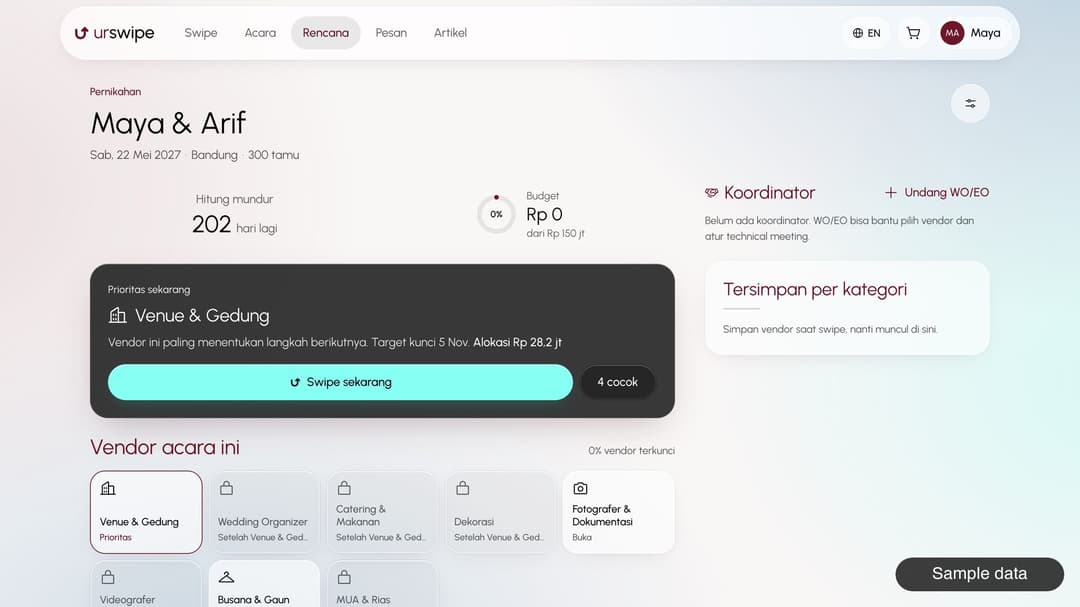
What you get is a plan dashboard: a countdown to the big day, a budget ring, a task timeline, and a Priority now card that tells you which category to sort out first. Some categories deliberately stay locked until others are done. Don't need one? Just skip it.
Cart: one request, many vendors
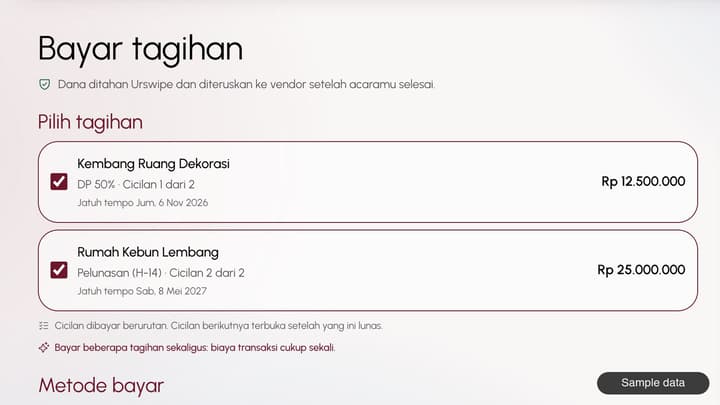
The packages you choose land in a cart per plan, with the date, quantity, estimated price, and an availability status that's recalculated whenever the cart opens. You can compare the estimated total with your budget. When you're ready, send a request to one vendor or all of them at once.
Vendors then reply with offers in chat, and you can counter both the amount and the installment schedule. Each vendor's steps can differ too. A caterer, for example, can add a food tasting to their deal flow, and you can follow the progress on the booking page.
Worth keeping in mind
Prices in the cart are still estimates. The final number is in the offer you agree on with the vendor. The planner's budget allocation is also a starting point, so you'll still want to adjust it to your own priorities.
Keep the spreadsheet if you really love it. The difference is that it no longer has to be the only thing remembering everything.
Note: this article is published by Urswipe and covers Urswipe's own product.
FAQ
Can I make a plan if my event date isn't set?
Yes. The wizard has an option for an unconfirmed date, so you can still build your plan first.
Is the price in the cart final?
No, it's an estimate. The final price is in the offer you agree on with the vendor.
Can I send requests to several vendors at once?
Yes. From the cart, you can send a request to one vendor or all the vendors in that plan.
Can I negotiate with vendors?
Yes. Vendors send offers in chat, and you can counter the amount and installment schedule. This needs a verified email.
What if I don't need a vendor category?
You can skip it on your plan dashboard, and bring it back if you change your mind.